


AI-assisted geometry generation turns text prompts and spatial descriptions into three-dimensional shapes. Geometry drives proportions, silhouette, topology, and editability, and it also shapes later texturing decisions across most digital modelling workflows. Tripo 3D uses this text-based approach to turn written descriptions into usable 3D assets. Clear prompts guide how the AI interprets shapes and spatial relationships before you move on to refinement, materials, rigging, or export.
Turning Concept Language Into Three-Dimensional Geometry
The AI 3d model generator translates the meaning of object identity, proportions, structure, and visual context from a description in words. Geometry systems are clearly signaled by specific shape vocabulary, rather than general terms like futuristic or attractive. Measurable relationships between surfaces are clearly communicated with terms such as tapered, cylindrical, recessed, arched, layered, and symmetrical. Spatial relationships are also important, as attached, centered, surrounding, stacked, or offset parts can result in a variety of 3D shapes. Major forms are important in determining the identity of objects, and should be drawn first before smaller details. Surface details can then indicate grooves, seams, ridges, bevels, openings or repetitive geometric features.
Writing Prompts That Shape Geometry Clearly
The difference between image to 3d model workflow and text prompting is that visual references carry shape information. Rather, the text prompts in this case demand a certain vocabulary for relationships that are naturally expressed through the visible form. Focus on the primary form, followed by dimensions, symmetry, curvature, thickness, and significant structural characteristics. Prior to adding surface colors, materials, patterns or decorative features to the prompt, mention component placement. Ambiguous geometry occurs when there are conflicting instructions such that one phrase is directly in conflict with another structural requirement. For example, a thin rigid shell and a thick rounded body are conflicting descriptions.
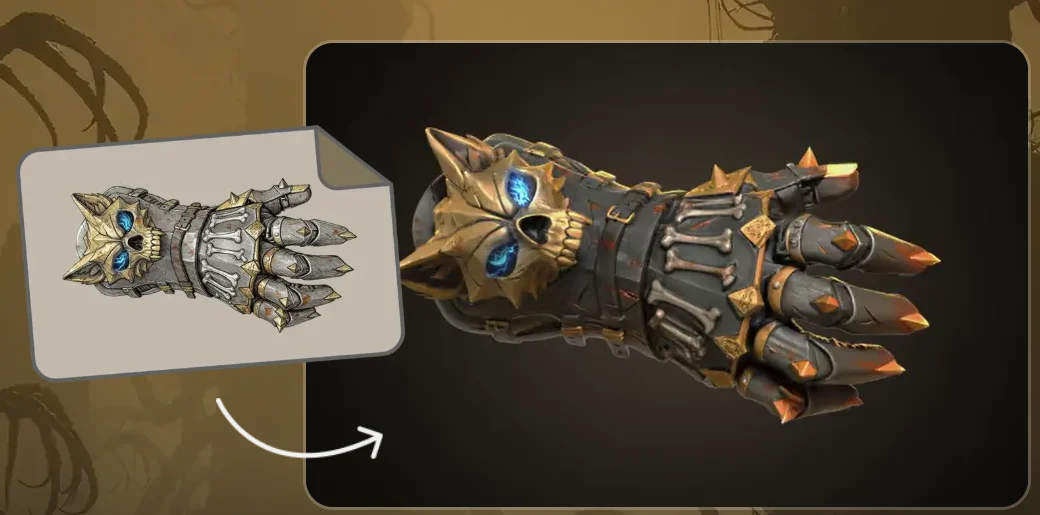
Steps to Shape Original Concepts With Text to 3d Model and AI-Powered Geometry
Step 1: Start With Your Concept Prompt
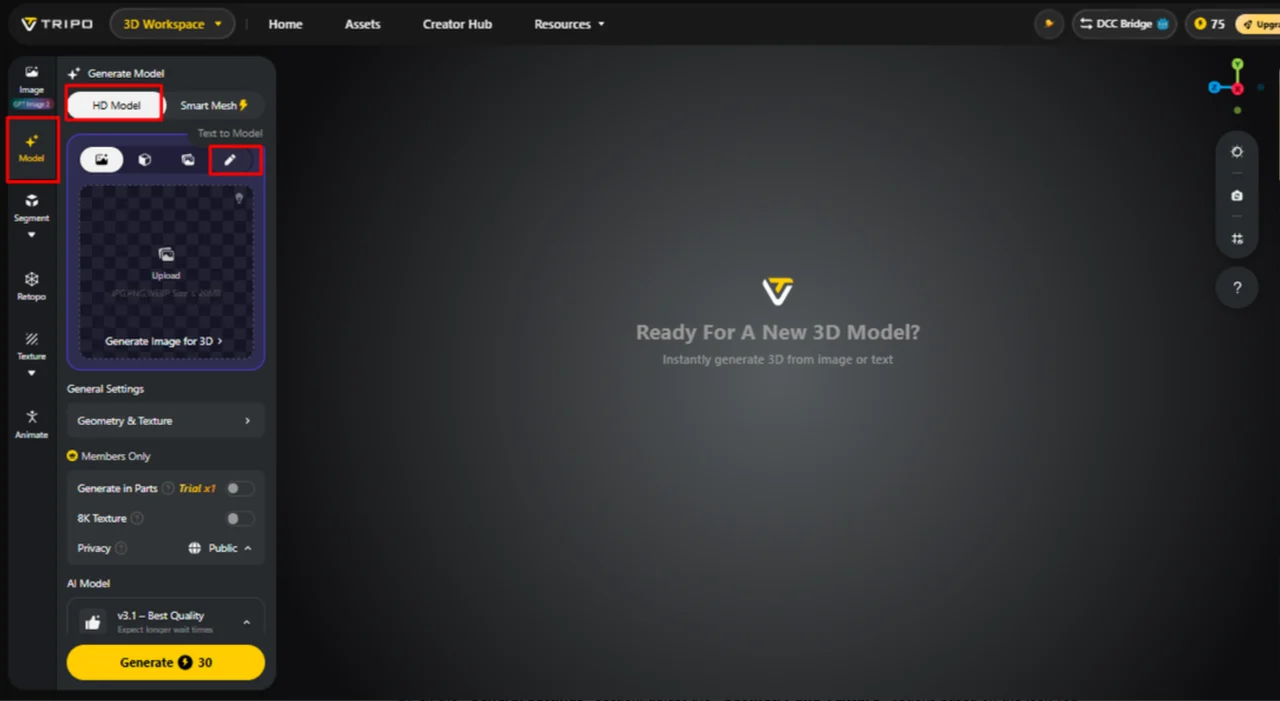
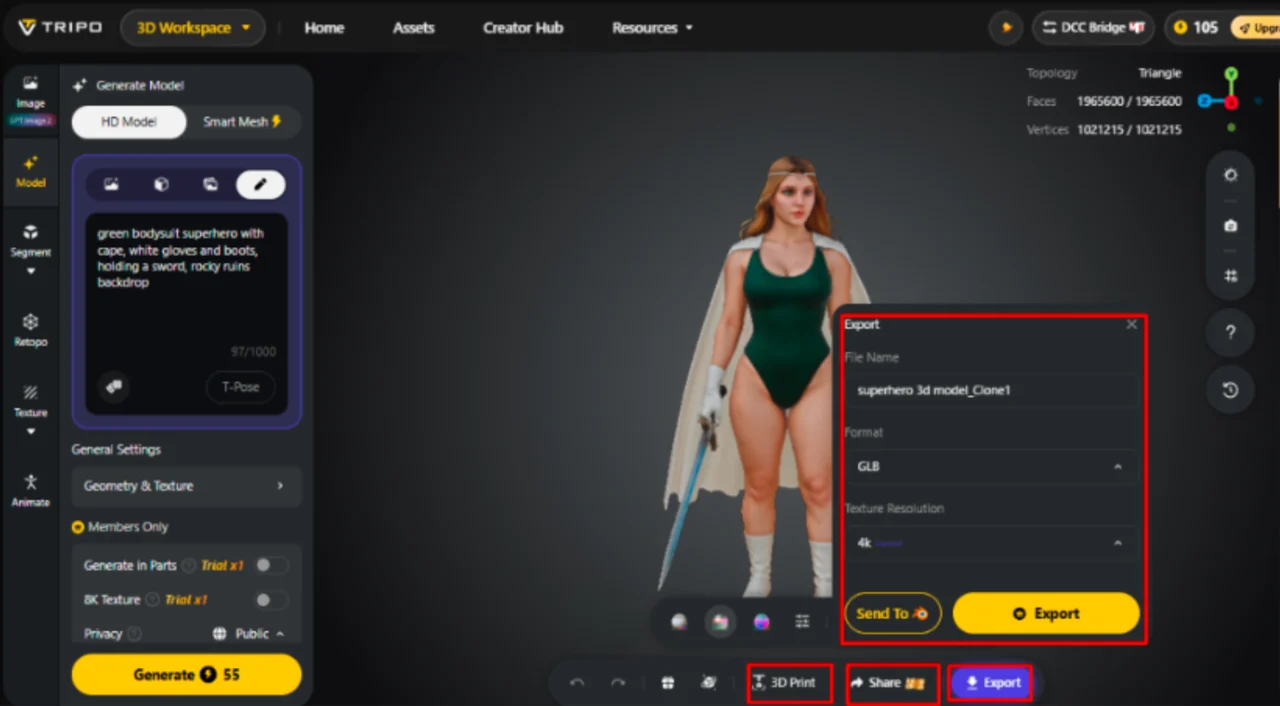
- First, access Tripo3d and complete the sign-up process. Then open the “Model” tab from the vertical left menu bar.
- From the available options, select “HD Model” to work with detailed 3D generation.
- Now open the “Text to Model” tab. Enter a clear, specific description of your original concept — including its style, material, and structure — and let the AI turn your idea into a 3D model. Note that AI generation involves an element of randomness, so if the first result isn’t quite what you wanted, you can simply retry to get a different variation.
Step 2: Define the Geometry and Generation Quality
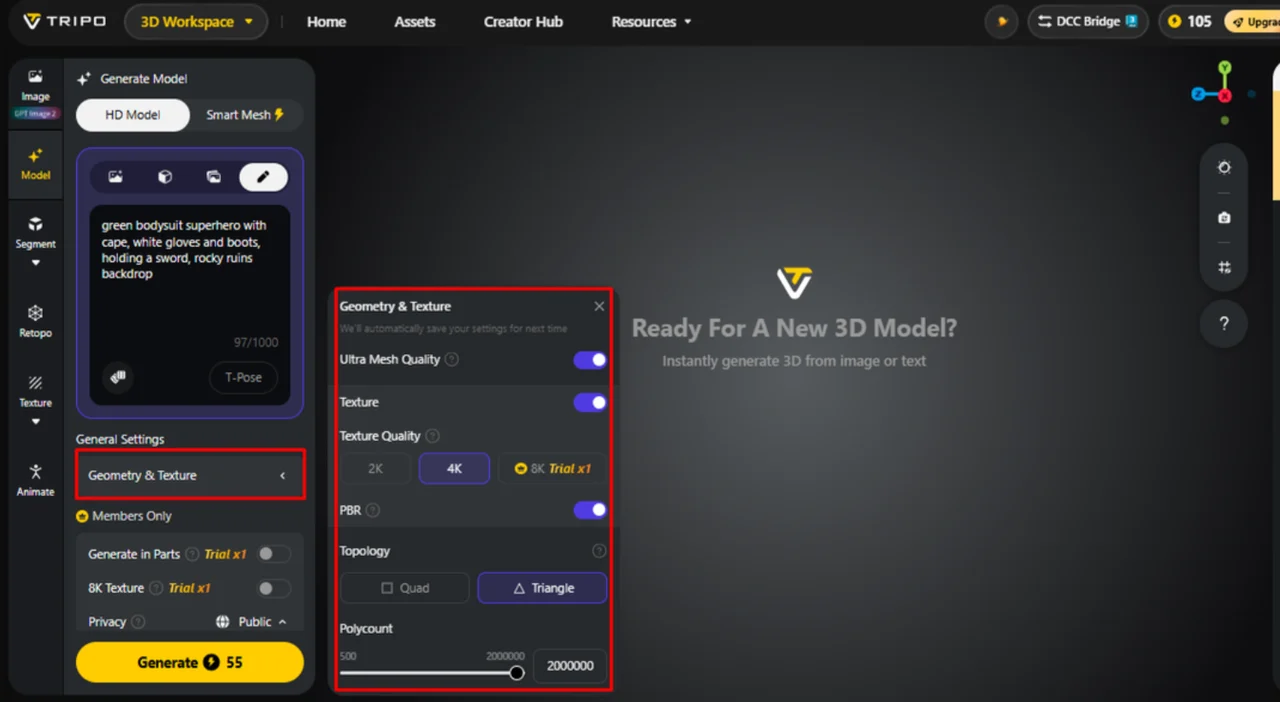
- In the “General settings” section, adjust the “Geometry and Texture” options based on the look you want. You can also enable “Ultra Mesh Quality” when you need a more detailed and realistic model.
- If you want AI to create both the model geometry and texture, enable “AI Complete” under the “Geometry & Texture panel”. It allows both generation processes to run through that panel. Alternatively, activate texture generation and select your desired “Texture Quality”, such as 2K, 4K, or 8K.
- You can also enable “PBR” to give materials more accurate reflective and surface properties.
- Choose “Quad” or “Triangle” topology when you want greater control over the model’s topology characteristics.
- You can set a custom polycount to control the overall geometric complexity of your concept.

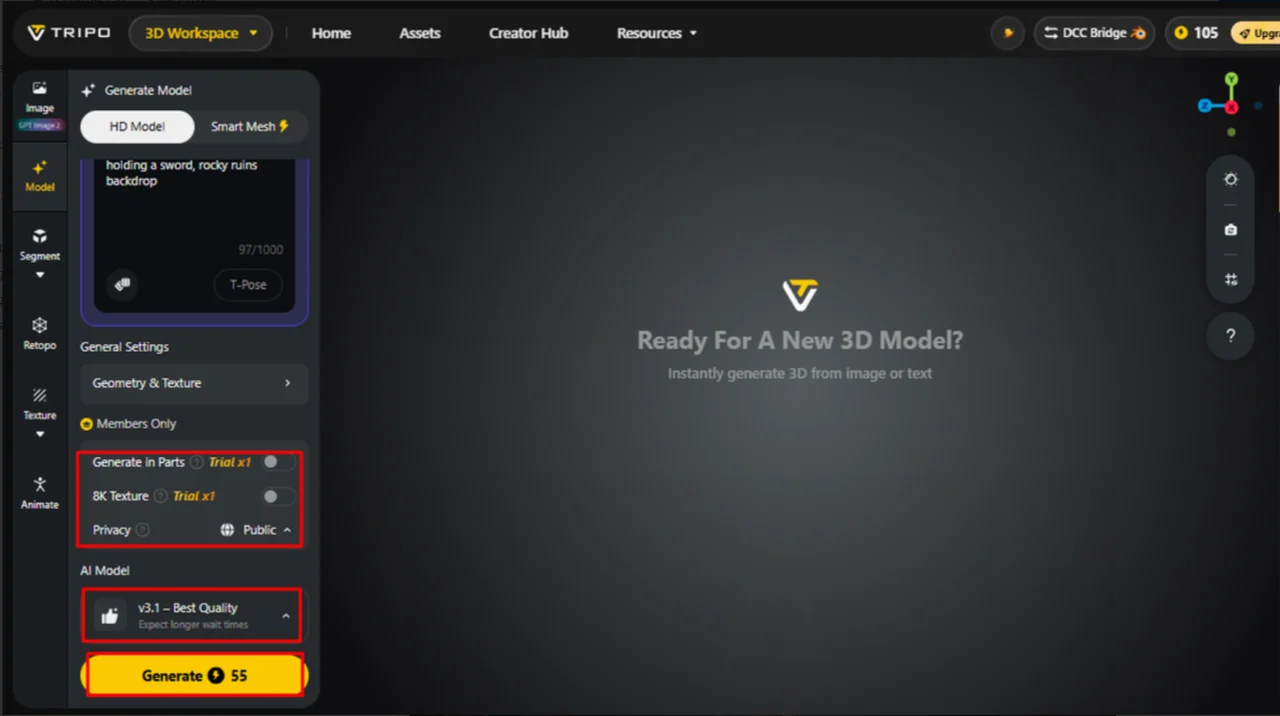
- Members have trial access to “Generate in Parts”, “8K Texture”, and “Privacy” in the Members Only area, limited to “Trial x1” per session. Note: “Generate in Parts” requires separate point billing.
- Select the model you prefer from Tripo’s available options. The supported versions include “V3.1”, “V3.0”, and “V2.5”, which vary in quality, stability, and intended use cases. Note: “V3.1” may have extended wait times.
- Once your settings match your concept, click “Generate Model” to start creating the 3D design.
Step 3: Refine Your Original Idea
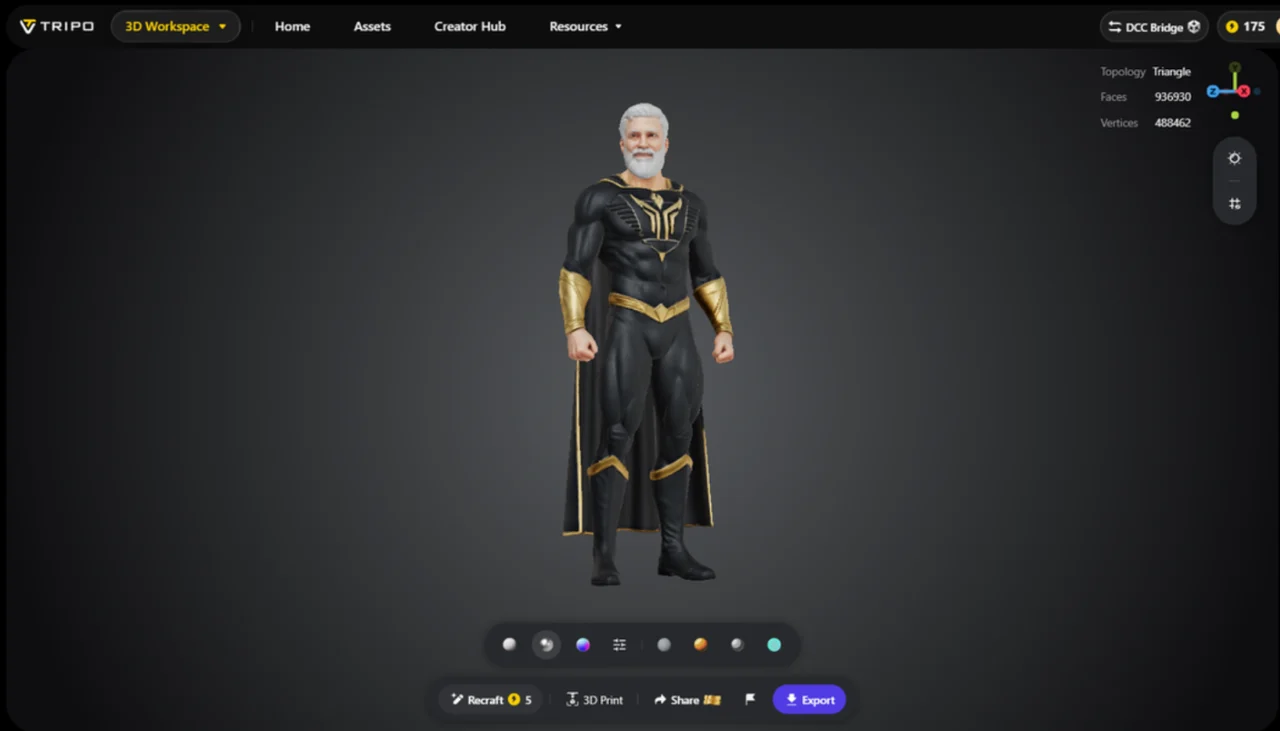
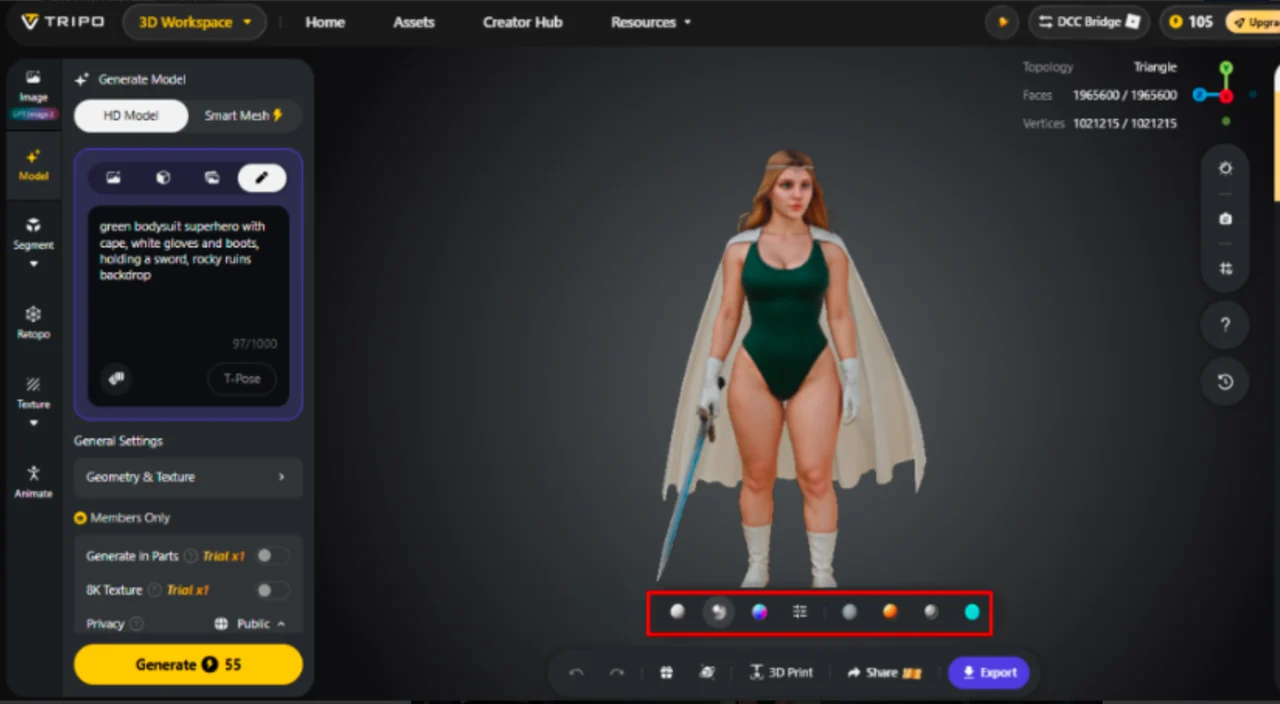
- Once the model is generated, you can examine it with Wireframe Mode, White Model View, Texture View, Shader, or HDRI. The bottom menu also provides “Refine”, which you can use to further enhance your design.

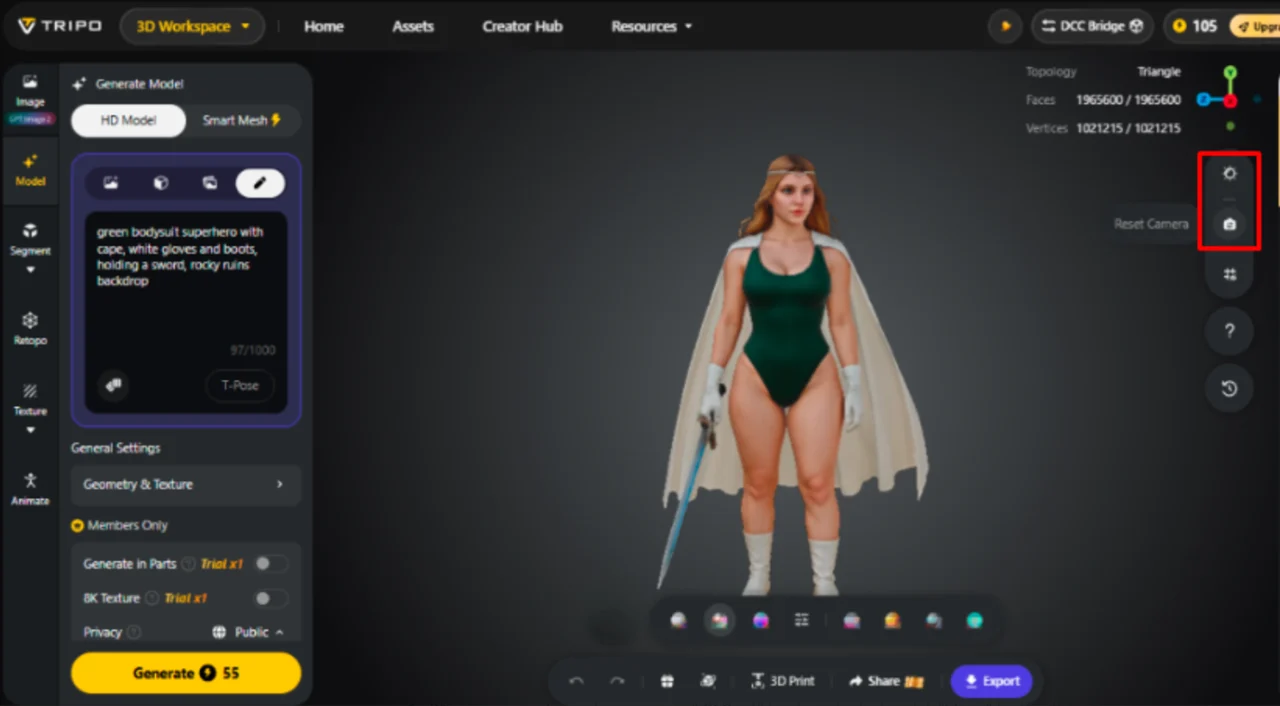
- Adjust the “Environment Settings” to change the viewing environment. You can also manage the camera through “Reset Camera”.
- When your concept is ready, you can use “3D Print” for physical output or click “Share” to share the design directly.
- Finally, click “Export” from the bottom menu. Select your preferred resolution, format, and filename, then click “Export” again to save the concept to your local device.
Geometric Control Through AI-Generated Mesh Structure
Mesh organization impacts various creative workflows during editing, deformation, subdivision, export, and downstream asset preparation. Different creative software and workflows require different quad and triangle structures. Quad meshes can be used for cleaner edge flows in deformation and subdivision, particularly around articulated shapes. Triangle meshes are still well-supported and are suitable for static assets or workflows in which triangulation is already performed. Polycount regulates the complexity of models, the number of polygons, processing power and the need for editing for various workflows.
- Controlled deformation and subdivision can be achieved on many editable assets using quad topology.
- Triangle topology can be used to create broadly compatible geometry for engines, viewers and export pipelines.
- Polycounts are higher to show more detailed shapes, but this consumes more memory and requires more processing power.
- Reducing poly count may lead to less curved surfaces and detail in structure, but will make the files easier to handle.
- Organized Meshes enable the rigging, refinement, material assignment and downstream export workflows.
Shaping Geometry Through Prompt Refinement
When modeling an object iteratively, incorrect proportions, missing parts or unintended geometric interpretations can be corrected through progressive prompt refinement. Make one major change to a characteristic at a time to get a clearer picture of the prompt effects with each revision. Relationships between forms can be connected, layered, recessed, protruding, enclosed or separated and can be clarified by spatial adjectives. For instance, mention that there is a circular panel recessed in the front shell structure. Next, explain its thickness, border, and how it is attached as separate structural features in prompts. Geometric properties of the resulting model in the generation are affected by input quality and generation settings. Refining is most effective when the language is consistent, and the individual structure requirements become more specific.
Building Editable Assets From Original Ideas
Geometry can be used to support subsequent texturing, rigging, modification, visualization and export processes in various creative applications. A good first form will serve as a solid base for later creative elaboration and development. Meshes created can be used in gaming, animation, visualization, product ideas, architecture studies, and 3D prototyping processes. The text to 3d model approach can be used to convert early descriptions into forms that can be developed. Export Options should be identical to the software, deformation requirements, rendering requirements or physical fabrication process to which they are being exported. Geometry is just one aspect of an asset; materials, textures, topology, and scale need to be reviewed. Through careful refinement, an initial concept can be transformed into an ‘editable asset’ without prematurely ‘locking’ all decisions.
Conclusion
Clear proportions and structural connections can be understood by using precise language in the AI-assisted geometry systems to interpret original concepts. Good prompts should set up main shapes prior to adding details, surfaces and/or decoration. The behavior of generated assets after that varies based on geometry settings, topology, polycount, and iterative refinement. Tripo 3D offers a flexible text-based workflow for exploring ideas and creating 3D forms that can be edited. The best outcomes require clear directions, appropriate environments, and systematic tuning during modelling.